How to Check If Your Website Is Under Attack
How to Check If Your Website Is Under Attack: 7 Warning Signs to Watch For
Your website is an important part of your business. It helps customers find your services, learn about your company, and get in touch. However, just like any online system, websites can become targets for hackers, malware, and other cybersecurity threats.
The challenge is that website attacks aren't always obvious. Some cause websites to crash or redirect visitors to suspicious pages, while others happen quietly in the background.
So, how do you check if your website is under attack?
Start by looking for unusual website activity, checking for unauthorized changes, reviewing security alerts, and monitoring your website's performance. These warning signs can help you identify potential threats before they lead to more serious problems.
In this guide, we'll explain the common signs of a website attack, how to check your website for security issues, and what to do if you suspect your website has been compromised.
What Does It Mean When Your Website Is Under Attack?
A website is under attack when someone attempts to access, disrupt, or exploit it without authorization.
Not every attack is successful, and some suspicious activity may be automatically blocked by your website's security measures. However, understanding common attack methods can help you recognize potential problems.
Some of the most common website attacks include:
- Brute-force attacks: Repeated attempts to guess login credentials and access administrator accounts.
- Malware infections: Malicious software or code installed on a website to perform unauthorized activities.
- DDoS attacks: Large amounts of traffic intentionally directed at a website to overwhelm its infrastructure.
- SQL injection: Attempts to manipulate database queries through vulnerable website inputs.
- Cross-site scripting (XSS): Exploiting vulnerabilities to run malicious scripts in visitors' browsers.
- Website defacement: Unauthorized changes to a website's appearance or content.
For Toronto businesses that depend on their websites to receive customer inquiries, accept bookings, or process online orders, a successful attack can cause significant disruptions.
Recognizing the warning signs early can help reduce the potential impact.
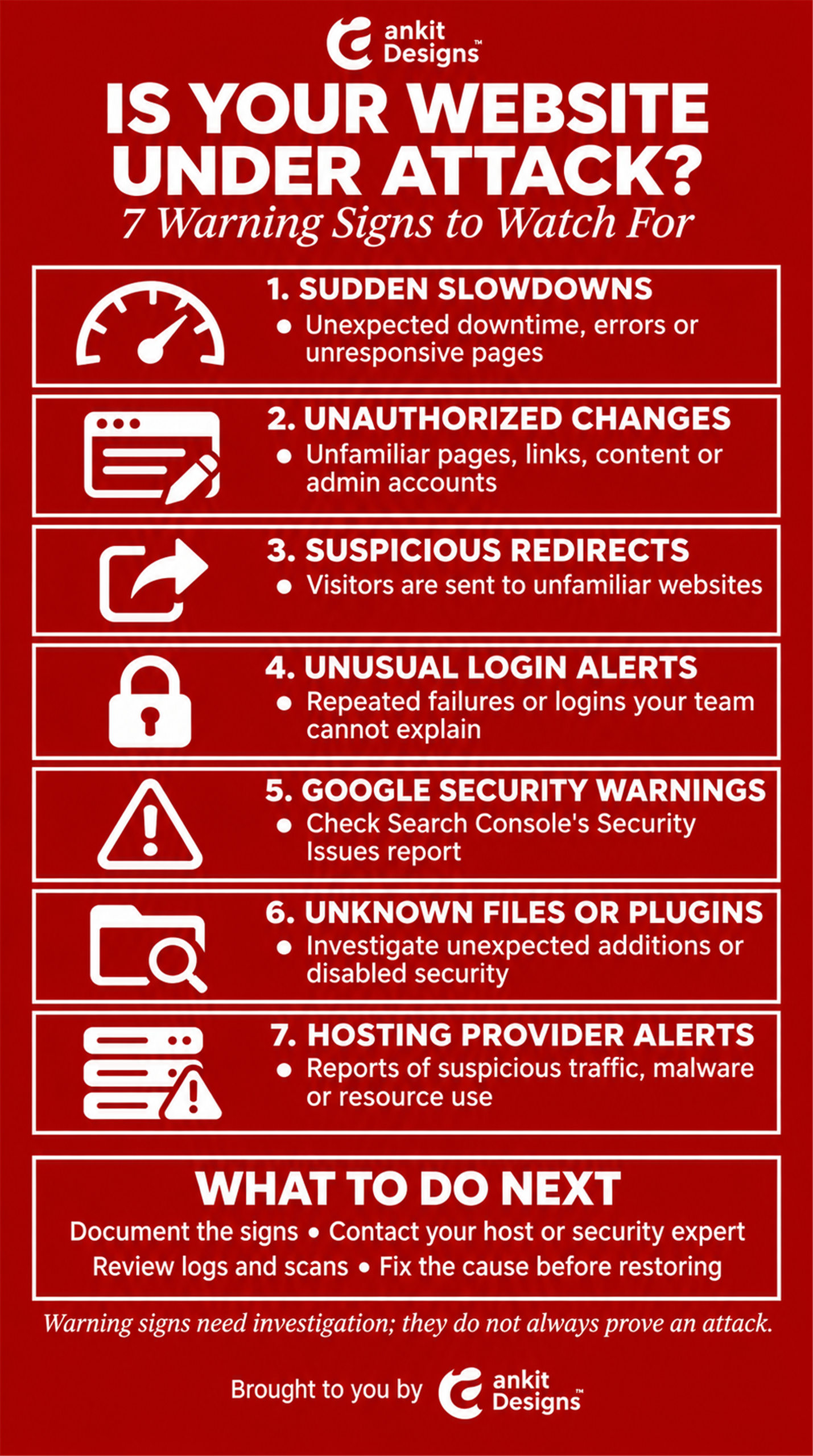
7 Signs Your Website May Be Under Attack
Some website security problems are easy to notice, while others require monitoring tools or technical investigation.
Here are seven warning signs every business owner should know.
1. Your Website Suddenly Becomes Slow or Unresponsive
One possible sign of an attack is an unexpected decrease in website performance.
For example, a large number of automated requests may put pressure on your hosting server, causing pages to load slowly or become temporarily unavailable.
You might notice:
- Website pages taking longer than usual to load
- Frequent server errors
- Unexpected downtime
- Contact forms failing to submit
- Website features becoming unresponsive
However, slow loading speeds don't automatically mean your website is being attacked.
Hosting issues, software problems, and legitimate traffic spikes can create similar symptoms.
If your website suddenly becomes much slower, reviewing server activity and recent website changes can help determine the cause.
2. You Notice Unauthorized Changes to Your Website
Unexpected changes to your website can indicate that someone has gained unauthorized access.
For example, you might discover unfamiliar pages, suspicious advertisements, or modifications to existing content.
Attackers sometimes add spam pages or malicious links that aren't immediately visible through your website's main navigation.
Warning signs include:
- New pages your team didn't create
- Changes to text or images without approval
- Suspicious links or advertisements
- Unfamiliar administrator accounts
- Unexpected changes to website settings
If you discover changes that nobody on your team recognizes, investigate them promptly.
3. Visitors Are Redirected to Suspicious Websites
A compromised website may redirect visitors to unfamiliar webpages.
Instead of accessing your business website, customers might be sent to suspicious advertisements, fraudulent pages, or potentially harmful destinations.
These redirects can be particularly difficult to identify because they may only affect certain visitors.
For example, your website might appear normal when you open it directly, while customers accessing it through search results experience redirects.
If customers report unusual redirects, don't ignore them.
A website security scan and technical investigation may be necessary to identify the problem.
4. You Receive Unusual Login Notifications
Repeated login attempts may indicate that someone is trying to access your website without permission.
For WordPress websites, attackers often use automated tools to guess administrator credentials.
Depending on your security setup, you might receive alerts about:
- Repeated failed login attempts
- Logins from unfamiliar locations
- Unexpected password reset requests
- Newly created administrator accounts
- Successful logins that your team doesn't recognize
A few failed login attempts don't necessarily indicate a security breach.
However, repeated suspicious activity or evidence of unauthorized access should be investigated.
5. Google Displays a Security Warning
Google may display warnings when it detects certain website security problems, including malware and phishing content.
These warnings can discourage visitors from accessing your website.
If Google identifies an issue, website owners may receive a notification through Google Search Console.
To check for warnings, visit Google Search Console and review the Security Issues report.
Keep in mind that a report showing no issues doesn't guarantee your website is secure. Google may not detect every type of security threat.
6. You Find Unknown Files or Plugins
WordPress websites use themes, plugins, and core software to support website functionality.
If an attacker gains access, they may install malicious files, modify existing code, or create unauthorized administrator accounts.
Potential warning signs include:
- Plugins you don't remember installing
- Unfamiliar website files
- Modified WordPress settings
- Unexpected administrator accounts
- Disabled security features
Not every unfamiliar file or plugin is malicious. Some are legitimate components installed by developers or hosting providers.
Avoid deleting files without understanding their purpose, as this could damage your website.
If you're unsure, ask a qualified website developer to investigate.
7. Your Hosting Provider Reports Suspicious Activity
Hosting providers may detect unusual activity before you notice problems with your website.
For example, your provider might identify excessive server resource usage, suspicious traffic, or malicious files.
In certain situations, the provider may temporarily restrict website access to protect its infrastructure.
If your hosting provider sends a security alert, review it carefully.
Ask what activity was detected, which systems may be affected, and what actions are recommended.
How to Check If Your Website Is Under Attack
If you suspect your website is experiencing suspicious activity, there are several steps you can take to investigate.
Some checks are straightforward, while others may require technical expertise.
Step 1: Check Google Search Console
Google Search Console is a free tool that helps website owners monitor their presence in Google Search.
It can also identify certain security problems.
To review your website:
- Open Google Search Console.
- Select your website.
- Navigate to Security & Manual Actions.
- Click Security Issues.
- Review any detected problems or warnings.
If Google has identified malware, phishing content, or certain other security issues, the report may provide additional details.
However, Search Console is only one part of a website security assessment.
Step 2: Run a Website Security Scan
Website security scanners can help identify signs of malware, suspicious files, and certain vulnerabilities.
For WordPress websites, tools such as Wordfence can monitor suspicious activity and scan website components for known threats.
Depending on the tool, security scans may identify:
- Known malicious code
- Suspicious file modifications
- Potential malware infections
- Compromised website components
- Security-related warnings
No scanner can identify every possible attack.
Combining automated scanning with regular website maintenance and technical review provides broader protection.
Step 3: Review Website Traffic and Server Logs
Unusual website traffic may indicate an attempted attack.
For example, repeated requests to administrative pages or unusually high traffic from automated sources may be worth investigating.
Server logs can help identify patterns in website requests.
Look for:
- Large numbers of failed login attempts
- Repeated requests to specific pages
- Sudden increases in traffic
- Unusual requests or error patterns
- Activity that doesn't match normal visitor behaviour
Remember that traffic spikes can also result from marketing campaigns, search engine crawlers, or legitimate customer activity.
If you're unfamiliar with server logs, your hosting provider or website developer may be able to help interpret them.
Step 4: Check Your WordPress Dashboard
If your website uses WordPress, review your administrative dashboard for suspicious changes.
Start by checking your user accounts.
Make sure every administrator is someone you recognize and that no unexpected accounts have been added.
Next, review your installed plugins and themes.
Check whether they are legitimate, necessary, and up to date.
You should also confirm that your WordPress installation and security tools are functioning properly.
Outdated software can create vulnerabilities, but updates should be handled carefully, especially on websites with custom functionality.
Step 5: Review Your Website Backups
Backups are essential when recovering from website problems.
If your website becomes compromised, a clean backup created before the incident may help restore its content and functionality.
Check whether backups are available, how frequently they are created, and where they are stored.
It's also important to confirm that they can be restored successfully.
However, restoring a backup without addressing the original vulnerability may expose your website to the same attack again.
What Should You Do If Your Website Is Being Attacked?
If you discover signs of a website attack, responding quickly and carefully can help limit further damage.
Document the Suspicious Activity
Start by recording what you've noticed.
Take screenshots of unusual messages, suspicious pages, or unexpected website changes.
Make note of when the problem began and whether customers have reported similar issues.
This information can help your website support team investigate.
Contact Your Hosting Provider or Website Developer
If you believe your website has been compromised, contact your hosting provider or a qualified website security professional.
They can help determine whether the issue involves your website's files, database, user accounts, or hosting environment.
Depending on the situation, they may recommend temporarily restricting access to affected systems while investigating.
If personal information may have been exposed, seek appropriate guidance about your organization's legal and notification obligations.
Secure Your Website Accounts
If unauthorized access is suspected, your website's administrator accounts should be reviewed.
This may involve:
- Resetting compromised passwords from a trusted device
- Enabling multifactor authentication
- Removing unauthorized administrator accounts
- Reviewing user permissions
- Revoking suspicious sessions
A qualified professional can help ensure these changes are completed without interfering with the investigation.
Remove Malicious Content and Fix Vulnerabilities
Removing visible malicious content doesn't always resolve a security breach.
Attackers may leave behind additional files or methods of regaining access.
A proper recovery process should identify and remove malicious changes, address the original vulnerability, and verify that the website is functioning securely.
In some cases, restoring a verified clean backup may be appropriate.
Continue Monitoring After Recovery
Even after your website appears to be working normally, ongoing monitoring remains important.
Review security alerts, administrator activity, website performance, and any unusual changes.
Regular maintenance can help identify problems before they lead to further disruptions.
How to Protect Your Website From Future Attacks
No website is completely immune to cyber threats, but several practices can help reduce common security risks.
Keep WordPress, Themes, and Plugins Updated
Outdated WordPress software can introduce security vulnerabilities.
Review updates regularly and apply them through an appropriate testing and backup process.
Keeping software current helps address known security issues and maintain compatibility.
Use Strong Passwords and Multifactor Authentication
Administrator accounts should use strong, unique passwords.
Multifactor authentication adds another layer of security by requiring additional verification.
It's also important to limit administrator access to team members who actually need it.
Maintain Reliable Backups
Regular backups help protect your website against accidental changes, technical failures, and certain security incidents.
The appropriate backup frequency depends on how often your website changes.
A busy e-commerce website may need more frequent backups than a small informational website.
Backups should also be stored securely and tested periodically.
Monitor Your Website Regularly
Security monitoring tools can help identify suspicious login activity, malware indicators, and unusual website changes.
However, automated tools aren't a replacement for regular technical reviews.
Combining monitoring with software maintenance, backups, and appropriate access controls provides a stronger security foundation.
How Ankit Designs' CareKit Helps Maintain WordPress Website Security
Managing website security can be time-consuming, especially for business owners who don't have technical experience.
Between software updates, security checks, backups, and troubleshooting, keeping a website maintained requires ongoing attention.
That's where Ankit Designs' CareKit WordPress Support Plan can help.
CareKit provides ongoing WordPress maintenance and monitoring services to help businesses keep their websites secure, updated, and functioning properly.
Threat and Hack Monitoring
CareKit uses Wordfence to monitor websites for external threats and hacking attempts.
This helps identify suspicious activity and provides additional insight into potential security issues.
Regular WordPress Updates
Outdated WordPress software, themes, and plugins can introduce security risks.
CareKit includes weekly WordPress updates to help maintain website functionality and address known vulnerabilities.
Website Backups
CareKit includes frequent website backups stored remotely.
These backups provide recovery options if a website experiences technical problems, crashes, or security incidents.
Uptime Monitoring and Human Checks
Website downtime can prevent customers from accessing your services or submitting inquiries.
CareKit combines uptime monitoring with regular human checks to help identify website errors and functionality problems.
Technical Support and Reporting
CareKit also includes dedicated support tickets and monthly reporting.
Reports provide information about website updates, security activity, and downtime, helping business owners stay informed about their website's condition.
For Toronto businesses relying on WordPress websites to generate leads, provide information, or receive inquiries, professional maintenance can help reduce the burden of ongoing technical management.
Learn more about our CareKit WordPress Support Plan and how it can help maintain and protect your website.
Frequently Asked Questions About Website Security
How Do I Know if My Website Has Been Hacked?
Common warning signs include unauthorized website changes, unfamiliar administrator accounts, suspicious redirects, malware warnings, and unexpected files. Some attacks produce no obvious symptoms, so security monitoring and technical checks are important.
Can Someone Attack My Website Without Me Knowing?
Yes. Some attacks and unauthorized access attempts happen without noticeable changes to the website. Automated security monitoring can help identify suspicious activity that might otherwise go unnoticed.
Is WordPress Safe From Hackers?
WordPress can be used to build secure websites, but security depends on proper maintenance, software updates, access controls, and other protective measures. Outdated plugins, weak passwords, and vulnerable components can increase security risks.
Can a Website Security Plugin Prevent Every Attack?
No. Security plugins can help monitor threats, identify suspicious activity, and block certain attacks, but they cannot prevent every security incident. A broader security strategy should include updates, backups, secure access, and regular monitoring.
What Should I Do First if My Website Is Hacked?
Document the warning signs and contact your hosting provider or a qualified website security professional promptly. They can help contain the issue, investigate the cause, and recommend appropriate recovery steps.
How Often Should I Check My Website for Security Issues?
Security monitoring should ideally be continuous, while software updates, backups, and website functionality should be reviewed regularly. The appropriate schedule depends on your website's size, complexity, and security needs.
Keep Your Website Protected With Ankit Designs
Knowing how to check if your website is under attack is an important part of protecting your business online.
Unusual website behaviour, suspicious login attempts, unauthorized changes, and security warnings can all indicate that something requires attention.
However, protecting your website involves more than identifying problems after they occur.
Regular maintenance, software updates, backups, and security monitoring help reduce risks and support ongoing website performance.
At Ankit Designs, we help businesses manage these responsibilities through our CareKit WordPress Support Plan.
With threat monitoring, regular updates, remote backups, uptime checks, and dedicated technical support, CareKit helps WordPress website owners stay on top of their website's maintenance and security needs.
Explore Ankit Designs' CareKit WordPress Support Plan to learn how our team can help maintain and protect your business website.
Get in touch with our team today to schedule a consultation and discover how we can create a website tailored to your business goals.
Share

About the author:
I'm nobody's taxi service but I take pride in driving the bus! Upbeat, energetic serial entrepreneur on the quest to serve and help people. I enjoy long walks on short beaches and adventurous, adrenaline-pumping activities. I'm a normal bloke doing abnormal bloke things!
